Introduction
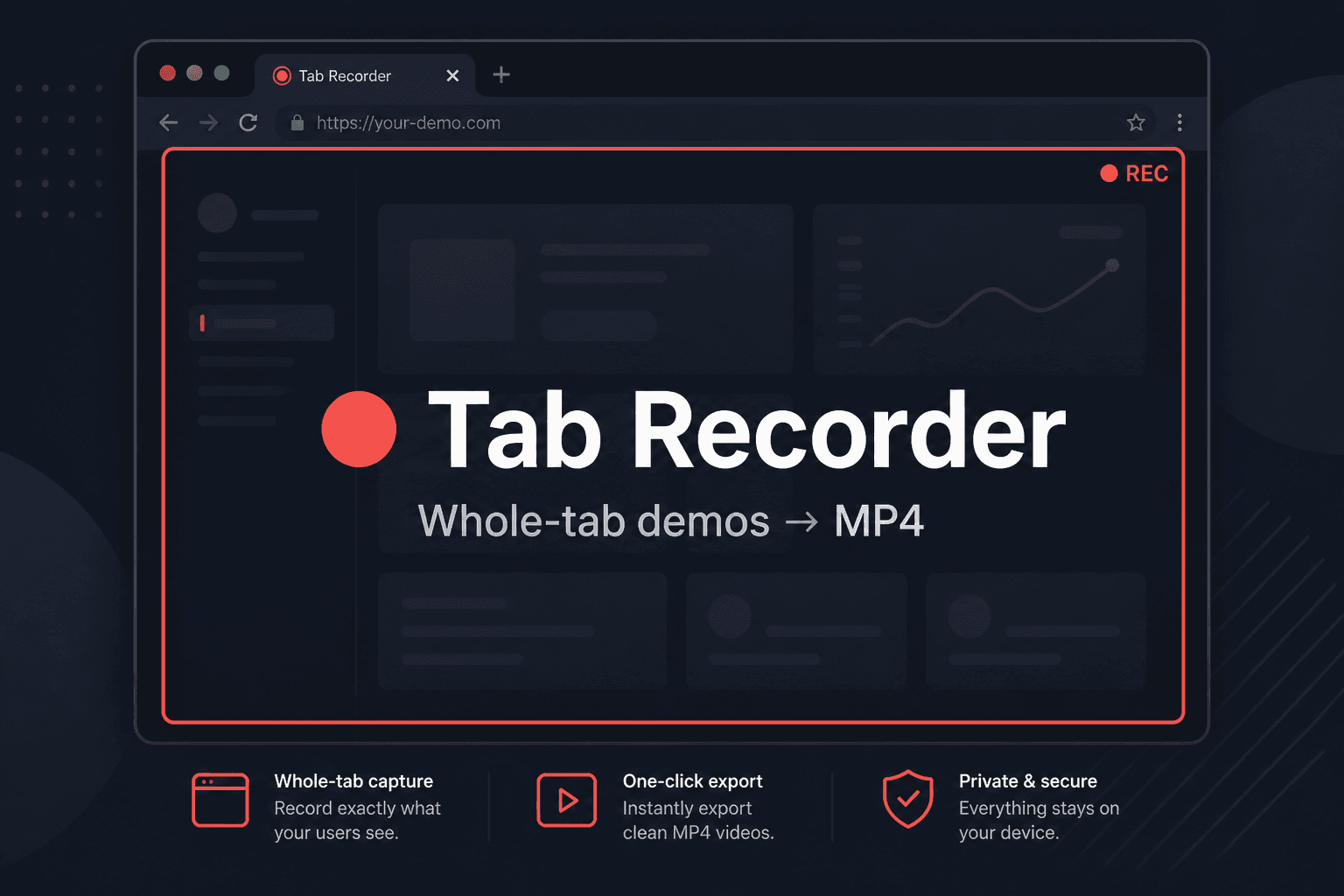
Tab Recorder is a Manifest V3 Chrome extension built for one job: record what you're doing in the browser, stop, and get an MP4 you can send to a client or another dev without opening OBS, exporting, or uploading to a converter.
It captures the whole active tab with Chrome's tabCapture API — not a single <video> element and not your entire desktop — so clips stay focused on the page you're demoing. Encoding runs in an offscreen document via WebCodecs and mediabunny, muxing H.264 + AAC into a downloadable MP4. Sessions are isolated per tab, with pause/resume.
Source: github.com/mitchelldawkinsjr/tab-recorder.
For the motivation and workflow story, see the companion post: Quick Browser Demos to MP4.
Status: Active — Sideload-ready extension. v2.0.0 in manifest.json (whole-tab capture).

Problem & Solution
The Problem
- Full screen recorders are overkill for a short feature walkthrough
- Desktop capture picks up notifications, Slack pings, and the wrong monitor
<video>-only capture misses most real demos (dashboards, forms, multi-step UI)- WebM downloads need a conversion step before most clients can play or share them
- One global recorder breaks down when you're researching in one tab and demoing in another
The Solution
- Capture the whole tab with
chrome.tabCapture.getMediaStreamId()after a user gesture from the popup - Encode in an offscreen document with WebCodecs (AVC video, AAC audio when available) via mediabunny's
Mp4OutputFormat - Per-tab service worker sessions — start, pause, resume, and stop without touching other tabs
- Stop → instant download —
{page-title}-{timestamp}.mp4lands in your Downloads folder
Architecture Overview
| Layer | Role |
|---|---|
Popup UI (popup.html / popup.js) | Start / pause / stop controls, timer, status |
Service worker (background.js) | Per-tab session state, tabCapture stream IDs, offscreen lifecycle |
Offscreen encoder (offscreen-recorder.js) | getUserMedia tab stream, WebCodecs encode, MP4 mux, download |
Content indicator (content-indicator.js) | Lightweight on-page recording/paused badge |
Build (esbuild) | Bundles src/offscreen-recorder.js → IIFE for the offscreen page |
Message flow
Popup → background.js
            ↓
  tabCapture.getMediaStreamId(tab)
            ↓
  Offscreen document (getUserMedia + mediabunny)
            ↓
  Blob → triggerDownload(.mp4)
The service worker cannot hold media streams under Manifest V3, so capture and encoding live in the offscreen document. Tab audio is mirrored through an AudioContext so the tab stays audible while recording.
Session model
Each tab gets its own session map entry:
| State | Meaning |
|---|---|
idle | Ready to record |
recording | Actively capturing |
paused | Capture frozen; same file on resume |
saving | Finalizing MP4 mux |
While recording, the tab is marked non-discardable so Chrome doesn't unload it mid-capture.
Key Features
- Whole-tab capture — records the page surface, not just a video player
- Per-tab isolation — record a demo in tab A while tab B stays untouched
- Pause / resume — freeze capture without starting a new file
- H.264 MP4 output — playable everywhere; no server transcode
- On-page indicator — corner badge while recording or paused
- Background tab keep-alive — non-discardable while a session is active
Local Install (Developer Mode)
git clone https://github.com/mitchelldawkinsjr/tab-recorder.git
cd tab-recorder
npm install
npm run build
In Chrome:
- Open
chrome://extensions - Enable Developer mode
- Click Load unpacked
- Select the
tab-recorderfolder (the one containingmanifest.json)
Open a normal website tab → extension icon → Start recording → Stop & download.
Requirements
- Chrome or Edge with WebCodecs and H.264 encode support (
canEncodeVideo('avc')) - A normal
http/httpstab (notchrome://or Web Store pages)
What I Use It For
Short clips of UI work, API demos, and "here's the fix" walkthroughs — the kind of video I'd otherwise delay because setting up OBS felt heavier than the demo itself. Stop recording, attach the MP4, send.